How to Publish a Product Page Template
Create and publish a product page template with Pagevo to customize how your product pages appear on your storefront.
This article will guide you through the steps to create, customize, assign products, and publish your template.
How to Publish a Template
Step 1: Open Page Builder
- Open Pagevo from your Shopify Admin.
- Go to Page builder.
- Click Add template to create a new product page template.
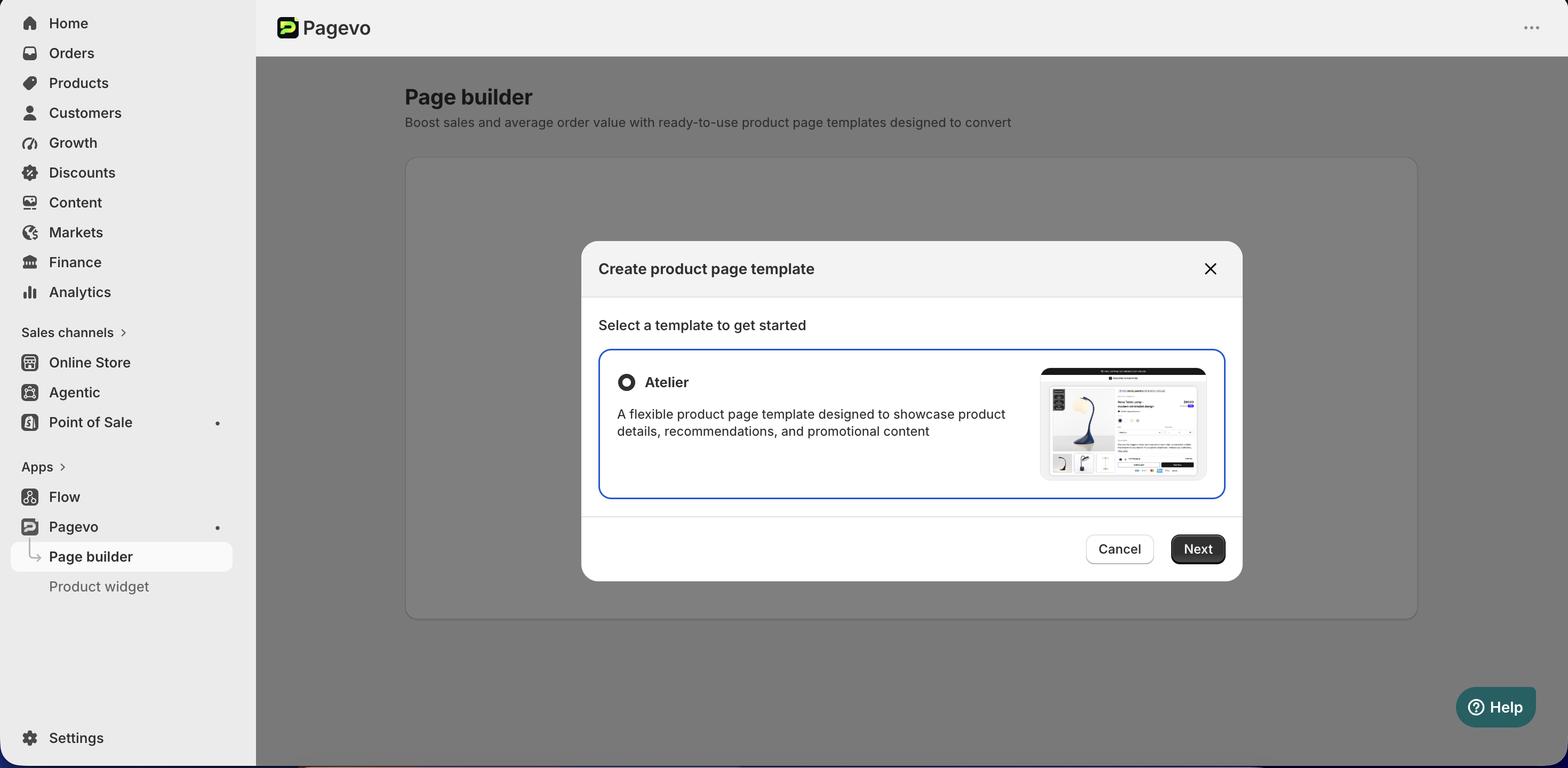
Step 2: Select a Template
In the Create product page template window, choose the template you'd like to start with, then click Next.
Currently, you can select the Atelier template to get started.
Step 3: Customize Your Product Page
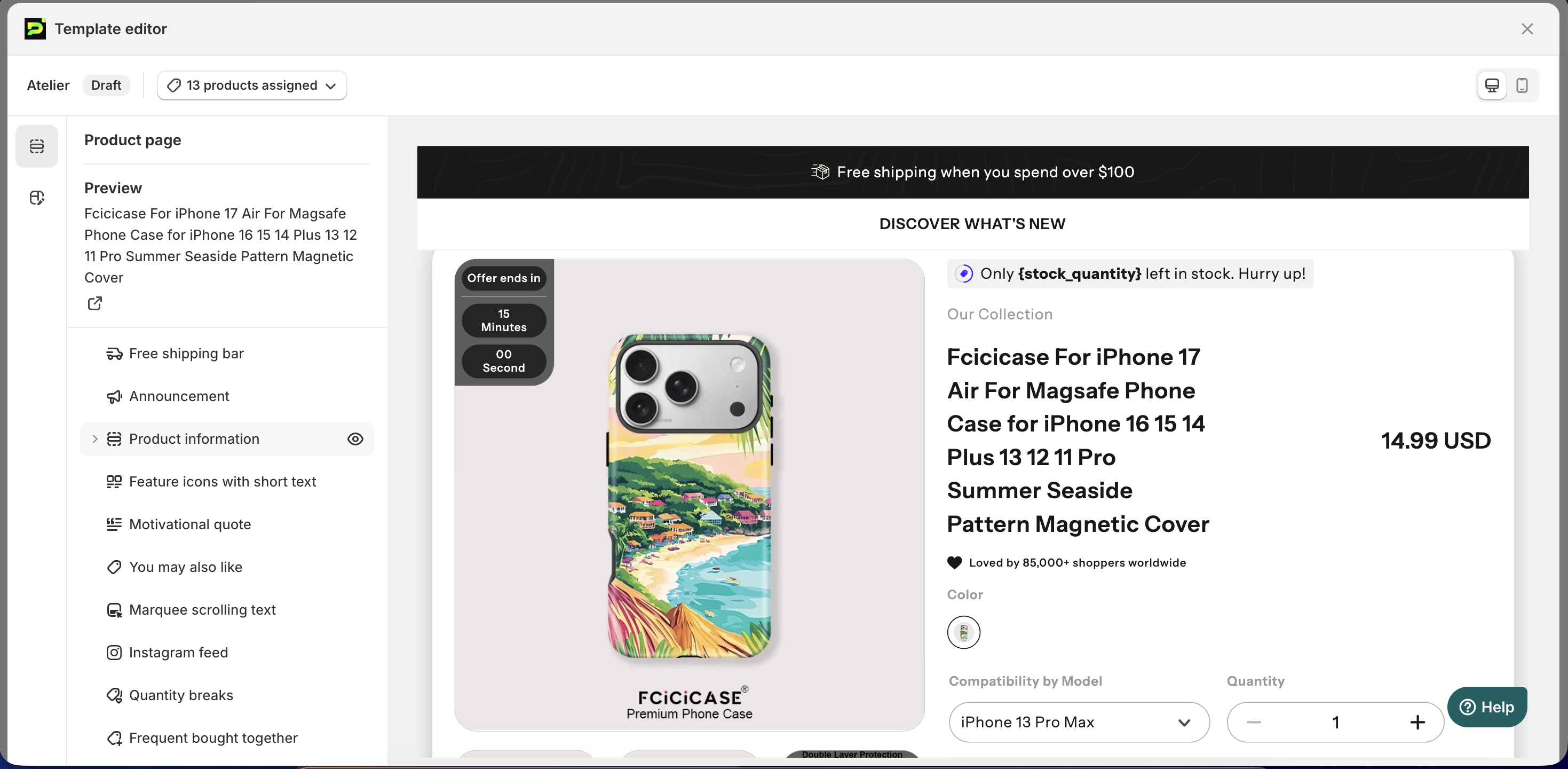
After selecting a template, you'll be taken to the Pagevo editor, where you can customize the layout and content of your product page.
Pagevo offers a variety of sections, including Free shipping bar, Announcement, Product information, Feature icons with short text, Motivational quote, You may also like, Marquee scrolling text, Instagram feed, Quantity breaks, Frequent bought together, Blog posts, Related products, Video, Feature icons with long text, Frequently Asked Questions (FAQ), Customers testimonials, Map and Email signup.
Add, customize, or rearrange sections to create a product page that best fits your store.
Step 4: Assign Products
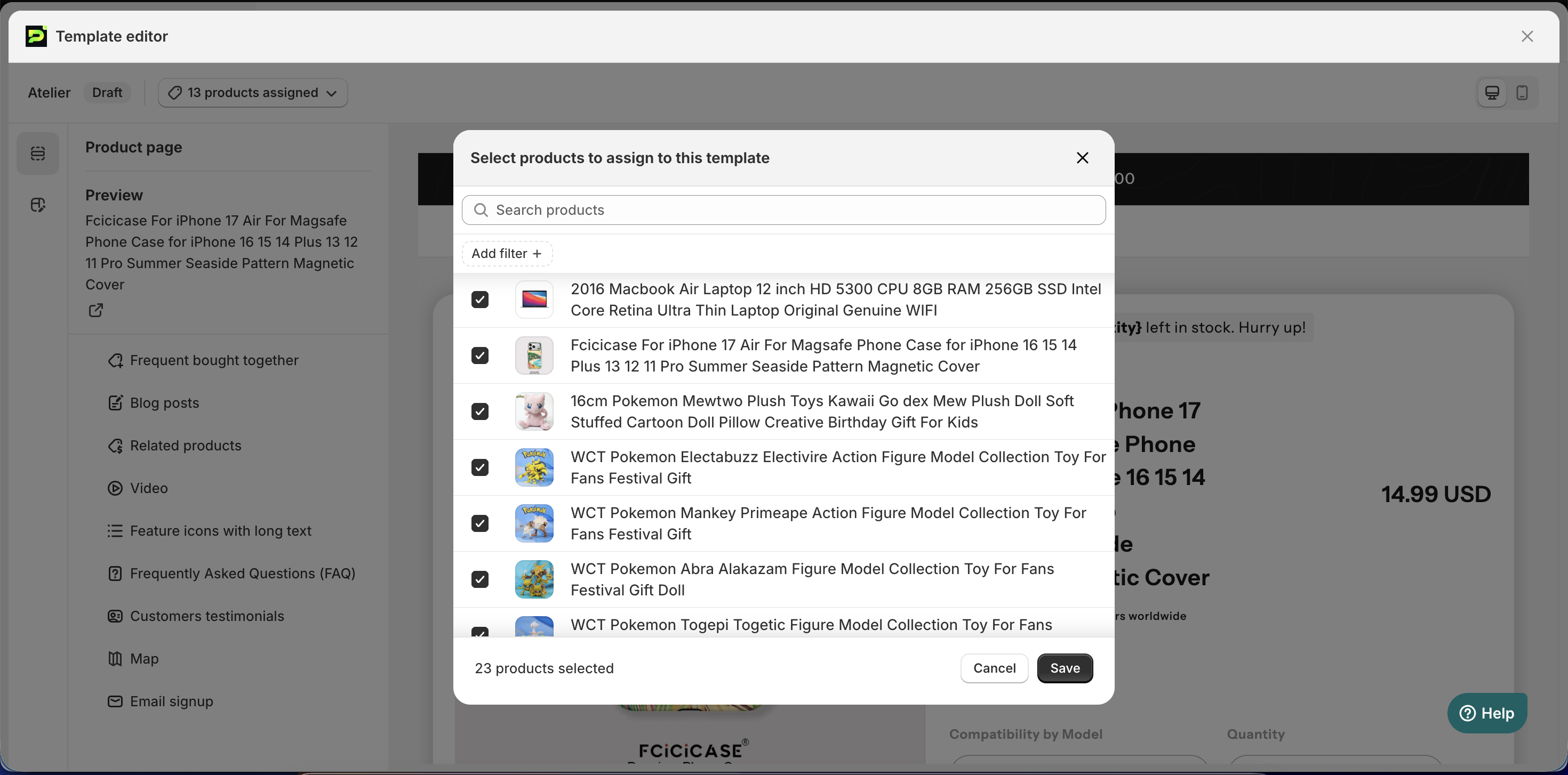
At the top of the editor, click products assigned and select the products you want to use this template for.
Make sure the correct products are assigned before publishing your template.
Step 5: Publish the Template
Once you're happy with your template:
- Click Save in the top-right corner.
- In the Publish this template window, click Save & Publish.
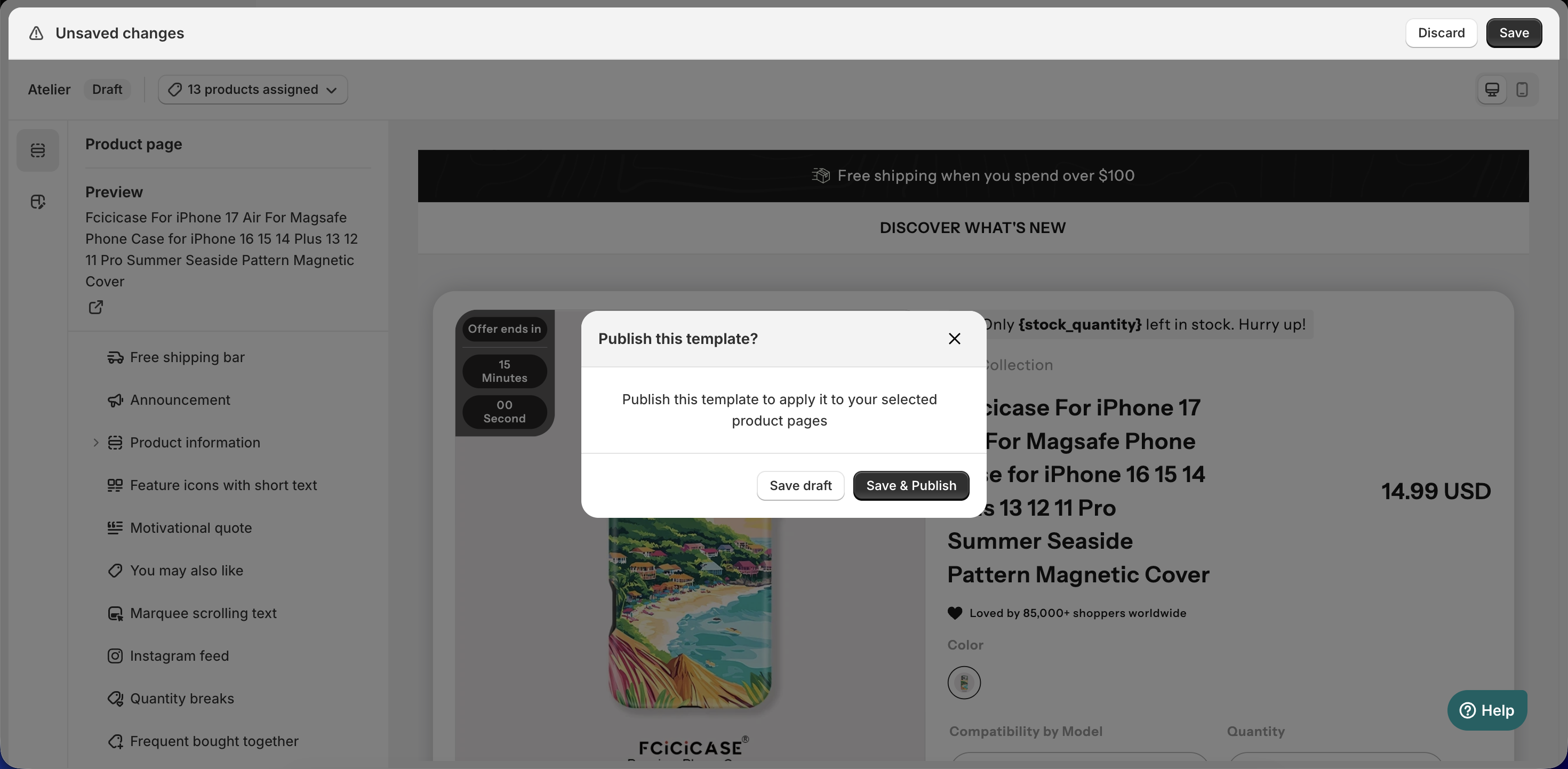
Your template will be published and applied to the selected product pages.
If you'd like to continue working on it later, click Save draft instead. Your changes will be saved without being published to your storefront.
NOTE
- Make sure you assign the template to the correct products before publishing.
- Templates saved as Draft will not appear on your storefront until they are published.
- After publishing, visit one of the assigned product pages to confirm that the template is displaying as expected.
If you need any further assistance, please contact us at [email protected].